Deprecated Integration Methods
PHP Server SDK Integration
We no longer support the PHP SDK and it is now deprecated.
Prerequisites
- PHP 5.5 and above
- Composer Package Manager
Integration
Using the Composer Package Manager:
- Add the Judopay package to your composer.json file: "require": {"judopay/judopay-sdk": "5.1.0"}
- Execute: $ composer install
- Make the Judopay SDK classes available to your application, by adding the following to your file: require 'vendor/autoload.php';
Only sandbox API tokens and secrets will work in the sandbox. Using the wrong tokens and secrets will result in an authorisation failure.
Setup
- Ensure all integration steps are completed.
- Add your app’s sandbox Token and Secret: var client = JudoPaymentsFactory.Create( JudoEnvironment.Sandbox, <yourApiToken>, <yourApiSecret> );
- Ensure the SDK is configured for the sandbox environment.
- Use the test cards provided in the Judopay Portal:
- Tools > Generating transactions
Create a separate app for your backend with the Make Payments permission enabled.
Test all your required payment types in the sandbox environment before going live.
- Create a new Judopay object, with your API credentials: $judopay = new \Judopay( array( 'apiToken' => 'your-token', 'apiSecret' => 'your-secret', 'judoId' => 'your-judo-id', //Set to true on production, defaults to false which is the sandbox 'useProduction' => false ) );
- Ensure the SDK is configured for the environment you are targeting. For example, if you are using the sandbox environment: 'useProduction' => false.
For the purpose of this exercise, the sandbox token and secret have been added.
The Server SDK allows for further configuration: Logging To help debug you can attach a logger library. Validation error details can be found in the modelErrors array. For example if a required field is missing from the model.
Other Payment Methods using the Server SDKs To send payment requests with the wallet details from Apple Pay™ and Google Pay™, see our Transaction API for more information.
Check Card
When making Token Payments, you can obtain the card token from the Check Card response.
Create an instance of the CheckCard Model:
//Prepare the CheckCard request
$checkCardRequest = $judopay->getModel('CheckCard');

$checkCardRequest->setAttributeValues(
    array(
        'judoId' => 'yourJudoId',
        'yourConsumerReference' => 'yourConsumerReference',
        'yourPaymentReference' => 'yourPaymentReference',
        'cardNumber' => '4976000000003436',
        'expiryDate' => '12/30',
        'cv2' => '452',
        'cardAddress' => array(
            'address1' => '41 Luke St',
            'postCode' => 'EC2A 4DP',
            'town' => 'London',
            'countryCode' => 826
        ),
        // PrimaryAccountDetails only required for MCC6012 merchants
        'primaryAccountDetails' => array(
            'name' => 'Smith',
            'accountNumber' => '1234567',
            'dateOfBirth' => '2000-12-31',
            'postCode' => 'EC2A 4DP'
        ),
        // Following are for 3DS2 transactions
        'phoneCountryCode' => '44',
        'mobileNumber' => '7999123456',
        'emailAddress' => '[email protected]',
        'cardHolderName' => 'John Smith',
        'threeDSecure' => array(
            'authenticationSource'      => 'Browser',
            'challengeRequestIndicator' => 'ChallengeAsMandate',
            'methodNotificationUrl'     => 'https://yourMethodNotificationUrl',
            'challengeNotificationUrl'  => 'https://yourMethodNotificationUrl'
        )
    )
);

try {
    //Send the request to Judopay
    $response = $checkCardRequest->create();

    if ($response['methodUrl'])
    {
        // Device details are required - POST md as threeDSMethodData to methodUrl
        $methodUrl = $response['methodUrl'];
        $md = $response['md'];
    }
    else if ($response['challengeUrl'])
    {
        // Challenge is required - POST creq to challengeUrl
        $challengeUrl = $response['challengeUrl'];
        $creq = $response['creq'];
    }
    else
    {
        $receiptId = $response['receiptId'];
        if ($response['result'] == 'Success')
        {
            $cardToken = $response['cardDetails']['cardToken'];
        }
    }
}
catch (\Judopay\Exception\ApiException $apiException)
{
    $errorResponse = "{\"error\":\"{$apiException->getSummary()}\",\"result\":\"Error\"}";
}
catch (\Judopay\Exception\ValidationError $validationErrors)
{
    // Required attributes are missing from the request
    $errorResponse = "{\"error\":\"{$validationErrors->getSummary()}\",\"result\":\"Error\"}";
}
catch (\Exception $e)
{
    $errorResponse = "{\"error\":\"".$e->getMessage()."\",\"result\":\"Error\"}";
}
You do not need to set an amount. This is automatically set by Judopay's Transaction API in order to check the card.
*Mastercard Recommends: These fields are recommended rather than mandatory. Transactions will continue to be processed if not supplied. See, Mastercard Recommended 3D Secure 2 Fieldsdd.
Parameter | Description |
|---|---|
judoId String Required | Unique ID supplied by Judopay. Specific to a merchant and/or location. Format:
|
yourConsumerReference String Required | Unique reference to anonymously identify your customer. Advisable to use GUIDs. Must be below 40 characters. |
yourPaymentReference String Required | Your unique reference for this payment. Format:
This value should be unique in order to protect your customers against duplicate transactions. With a server side integration, if a payment reference is not supplied, the transaction will not be processed. |
phoneCountryCode String Recommended * | The country code of the consumer's phone. Format:
Must be set if mobileNumber is set. If not set, default = 44 |
mobileNumber String Recommended * | Consumer’s valid mobile number. Mastercard recommends providing at least one contact method for Mastercard 3D Secure authenticated transactions. Format:
Must be set if phoneCountryCode is set. |
cardHolderName String Recommended * | The card name of the consumer If the cardHolderName field is displayed to the user in the payment form (isCardHolderNameVisible: true is set in the iFrame config), the value entered in the payment form will overwrite this value. |
challengeRequestIndicator String Optional | Indicates the type of challenge request you wish to apply. Set this to one of the following strings:
This should not be included in the same configuration object as scaExemption. |
scaExemption String Optional | To apply for an exemption from SCA, for a customer initiated transaction. Set this to one of the following strings:
This should not be included in the same configuration object as challengeRequestIndicator. |
initialRecurringPayment Boolean Optional | Indicates if this initial payment is part of a recurring payment. |
billingAddress Object Optional | Card holder's billing address. Properties:
If the billingAddress is provided, the postcode is required. |
emailAddress String Recommended * | Consumer’s valid email address. Mastercard recommends providing at least one contact method for Mastercard 3D Secure authenticated transactions. |
If result.HasError = false, check the Payment Receipt Model response.
Save Card
Use saveCard to save the consumer's card details in Judopay's card vault.
When making Token Payments, you can obtain the card token from the Save Card response.
Create an instance of the SaveCardModel:
//Prepare the SaveCard request
$saveCardRequest = $judopay->getModel('SaveCard');

$saveCardRequest->setAttributeValues(
    array(
        'judoId' => 'yourJudoId',
        'yourConsumerReference' => 'yourConsumerReference',
        'cardNumber' => '4976000000003436',
        'expiryDate' => '12/30'
    )
);

try {
    //Send the request to Judopay
    $response = $saveCardRequest->create();

    $receiptId = $response['receiptId'];
    if ($response['result'] == 'Success')
    {
        $cardToken = $response['cardDetails']['cardToken'];
    }
}
catch (\Judopay\Exception\ApiException $apiException)
{
    $errorResponse = "{\"error\":\"{$apiException->getSummary()}\",\"result\":\"Error\"}";
}
catch (\Judopay\Exception\ValidationError $validationErrors)
{
    // Required attributes are missing from the request
    $errorResponse = "{\"error\":\"{$validationErrors->getSummary()}\",\"result\":\"Error\"}";
}
catch (\Exception $e)
{
    $errorResponse = "{\"error\":\"".$e->getMessage()."\",\"result\":\"Error\"}";
}
*Mastercard Recommends: These fields are recommended rather than mandatory. Transactions will continue to be processed if not supplied. See, Mastercard Recommended 3D Secure 2 Fieldsdd.
Parameter | Description |
|---|---|
cardNumber String Required | Submitted without whitespace or non-numeric characters. |
expiryDate String Optional | The expiry date of the card. Format:
|
cardAddress Object Recommended * | Card holder's address. Values:
If the cardAddress is provided, the postcode is required. |
startDate String Optional | For Maestro cards: Format:
|
issueNumber Integer Optional | For Maestro cards:
|
yourConsumerReference String Required | Unique reference to anonymously identify your customer. Advisable to use GUIDs. Must be below 40 characters. |
judoId String Required | Unique ID supplied by Judopay. Specific to a merchant and/or location. Format:
|
currency String Optional | The currency of the transaction. Any ISO 4217 alphabetic currency code:
|
cardHolderName String Recommended * | The card name of the consumer. |
If result.HasError = false, check the Payment Receipt Model response.
Token Payments
You can create a token payment following a: Payment | PreAuth | Save Card operation, as a card token is always returned.
Create an instance of the TokenPaymentModel:
//Prepare the TokenPayment request
$tokenPaymentRequest = $judopay->getModel('TokenPayment');

$tokenPaymentRequest->setAttributeValues(
    array(
        'judoId' => 'yourJudoId',
        'yourConsumerReference' => 'yourConsumerReference',
        'yourPaymentReference' => 'yourPaymentReference',
        'cardToken' => 'cardTokenFromPreviousTransaction',
        'cv2' => '452',
        'amount' => 1.01,
        'currency' => 'GBP',
        // PrimaryAccountDetails only required for MCC6012 merchants
        'primaryAccountDetails' => array(
            'name' => 'Smith',
            'accountNumber' => '1234567',
            'dateOfBirth' => '2000-12-31',
            'postCode' => 'EC2A 4DP'
        ),
        // Following are for 3DS2 customer-initiated transactions
        'phoneCountryCode' => '44',
        'mobileNumber' => '7999123456',
        'emailAddress' => '[email protected]',
        'cardHolderName' => 'John Smith',
        'threeDSecure' => array(
            'authenticationSource'      => 'Browser',
            'challengeRequestIndicator' => 'ChallengeAsMandate',
            'methodNotificationUrl'     => 'https://yourMethodNotificationUrl',
            'challengeNotificationUrl'  => 'https://yourMethodNotificationUrl'
        ),
        // Following are for merchant-initiated transactions
        'recurringPayment' => true,
        'recurringPaymentType' => 'mit', // Unscheduled, use recurring for scheduled payments
        'relatedReceiptId' => 'receiptIdOfOriginalCustomerInitiatedTransaction'
    )
);

try {
    //Send the request to Judopay
    $response = $tokenPaymentRequest->create();

    if ($response['methodUrl'])
    {
        // Device details are required - POST md as threeDSMethodData to methodUrl
        $methodUrl = $response['methodUrl'];
        $md = $response['md'];
    }
    else if ($response['challengeUrl'])
    {
        // Challenge is required - POST creq to challengeUrl
        $challengeUrl = $response['challengeUrl'];
        $creq = $response['creq'];
    }
    else
    {
        $receiptId = $response['receiptId'];
        if ($response['result'] == 'Success')
        {
            $cardToken = $response['cardDetails']['cardToken'];
        }
    }
}
catch (\Judopay\Exception\ApiException $apiException)
{
    $errorResponse = "{\"error\":\"{$apiException->getSummary()}\",\"result\":\"Error\"}";
}
catch (\Judopay\Exception\ValidationError $validationErrors)
{
    // Required attributes are missing from the request
    $errorResponse = "{\"error\":\"{$validationErrors->getSummary()}\",\"result\":\"Error\"}";
}
catch (\Exception $e)
{
    $errorResponse = "{\"error\":\"".$e->getMessage()."\",\"result\":\"Error\"}";
}
*Mastercard Recommends: These fields are recommended rather than mandatory. Transactions will continue to be processed if not supplied. See, Mastercard Recommended 3D Secure 2 Fieldsdd.
Parameter | Description |
|---|---|
cardToken String Required | Save the cardToken into your database to send back to Judopay, instead of inserting the consumer's card details. |
yourConsumerReference String Required | Unique reference to anonymously identify your customer. Advisable to use GUIDs. This must match the original yourConsumerReference when the token was initially created. |
yourPaymentReference String Required | Set your unique reference for this payment. Format:
|
yourPaymentMetaData IDictionary Optional | Additional information associated with a transaction to help reconcile. |
judoId String Required | Unique ID supplied by Judopay. Specific to a merchant and/or location. Format:
|
amount Decimal Required | The amount to process. Format:
|
currency String Optional | The currency of the transaction. Any ISO 4217 alphabetic currency code:
|
userAgent String Optional | Consumer's browser details. |
deviceCategory String Optional | The type of device where the consumer is carrying out the transaction:
|
acceptHeaders String Optional | Consumer's browser details. |
cardAddress Object Optional | Card holder's billing address. Values:
If the billingAddress is provided, the postcode is required. |
initialRecurringPayment Boolean Optional | Indicates if this initial payment is part of a recurring payment. |
recurringPayment Boolean Optional | Indicates if this is a recurring payment. |
recurringPaymentType enum Optional | Type of recurring payment. Values:
If a value is not set, the default value = RECURRING |
relatedReceiptId String Optional | The receiptId returned from the first subscription payment. Adding the relatedReceiptId references the subsequent recurring transactions to the original transaction. |
If result.HasError = false, check the Payment Receipt Model response.
Creating a PreAuth
Create an instance of the CardPayment Model:
//Prepare the Preauth request
$preauthRequest = $judopay->getModel('Preauth');

$preauthRequest->setAttributeValues(
    array(
        'judoId' => 'yourJudoId',
        'yourConsumerReference' => 'yourConsumerReference',
        'yourPaymentReference' => 'yourPaymentReference',
        'cardNumber' => '4976000000003436',
        'expiryDate' => '12/30',
        'cv2' => '452',
        'amount' => 1.01,
        'currency' => 'GBP',
        'cardAddress' => array(
            'address1' => '41 Luke St',
            'postCode' => 'EC2A 4DP',
            'town' => 'London',
            'countryCode' => 826
        ),
        // PrimaryAccountDetails only required for MCC6012 merchants
        'primaryAccountDetails' => array(
            'name' => 'Smith',
            'accountNumber' => '1234567',
            'dateOfBirth' => '2000-12-31',
            'postCode' => 'EC2A 4DP'
        ),
        // Following are for 3DS2 transactions
        'phoneCountryCode' => '44',
        'mobileNumber' => '7999123456',
        'emailAddress' => '[email protected]',
        'cardHolderName' => 'John Smith',
        'threeDSecure' => array(
            'authenticationSource'      => 'Browser',
            'challengeRequestIndicator' => 'ChallengeAsMandate',
            'methodNotificationUrl'     => 'https://yourMethodNotificationUrl',
            'challengeNotificationUrl'  => 'https://yourMethodNotificationUrl'
        )
    )
);

try {
    //Send the request to Judopay
    $response = $preauthRequest->create();

    if ($response['methodUrl'])
    {
        // Device details are required - POST md as threeDSMethodData to methodUrl
        $methodUrl = $response['methodUrl'];
        $md = $response['md'];
    }
    else if ($response['challengeUrl'])
    {
        // Challenge is required - POST creq to challengeUrl
        $challengeUrl = $response['challengeUrl'];
        $creq = $response['creq'];
    }
    else
    {
        $receiptId = $response['receiptId'];
        if ($response['result'] == 'Success')
        {
            $cardToken = $response['cardDetails']['cardToken'];
        }
    }
}
catch (\Judopay\Exception\ApiException $apiException)
{
    $errorResponse = "{\"error\":\"{$apiException->getSummary()}\",\"result\":\"Error\"}";
}
catch (\Judopay\Exception\ValidationError $validationErrors)
{
    // Required attributes are missing from the request
    $errorResponse = "{\"error\":\"{$validationErrors->getSummary()}\",\"result\":\"Error\"}";
}
catch (\Exception $e)
{
    $errorResponse = "{\"error\":\"".$e->getMessage()."\",\"result\":\"Error\"}";
}
*Mastercard Recommends: These fields are recommended rather than mandatory. Transactions will continue to be processed if not supplied. See, Mastercard Recommended 3D Secure 2 Fieldsdd.
Parameter | Description |
|---|---|
judoId String Required | Unique ID supplied by Judopay. Specific to a merchant and/or location. Format:
|
amount Decimal Required | The amount to process. Format:
For currencies using a different structure please contact Judopay for support. |
currency String Required | The currency of the transaction. Any ISO 4217 alphabetic currency code:
|
yourConsumerReference String Required | Unique reference to anonymously identify your customer. Advisable to use GUIDs. Must be below 40 characters. |
yourPaymentReference String Required | Your unique reference for this payment. Format:
This value should be unique in order to protect your customers against duplicate transactions. With a server side integration, if a payment reference is not supplied, the transaction will not be processed. |
phoneCountryCode String Recommended * | The country code of the consumer's phone. Format:
Must be set if mobileNumber is set. If not set, default = 44 |
mobileNumber String Recommended * | Consumer’s valid mobile number. Mastercard recommends providing at least one contact method for Mastercard 3D Secure authenticated transactions. Format:
Must be set if phoneCountryCode is set. |
cardHolderName String Recommended * | The card name of the consumer. If the cardHolderName field is displayed to the user in the payment form (isCardHolderNameVisible: true is set in the iFrame config), the value entered in the payment form will overwrite this value. |
challengeRequestIndicator String Optional | Indicates the type of challenge request you wish to apply. Set this to one of the following strings:
This should not be included in the same configuration object as scaExemption. |
scaExemption String Optional | To apply for an exemption from SCA, for a customer initiated transaction. Set this to one of the following strings:
This should not be included in the same configuration object as challengeRequestIndicator. |
initialRecurringPayment Boolean Optional | Indicates if this initial payment is part of a recurring payment. |
billingAddress Object Optional | Card holder's billing address. Properties:
If the billingAddress is provided, the postcode is required. |
emailAddress String Recommended * | Consumer’s valid email address. Mastercard recommends providing at least one contact method for Mastercard 3D Secure authenticated transactions. |
primaryAccountDetails Object Optional | This is Mandatory for merchants who have an MCC code of 6012, 6051 and 7299. Properties:
|
businessApplicationId String Optional | Required for AFT transactions. Identifies the type / purpose of the transaction. Format:
Values:
Note: If businessApplicationId is provided, aftRecipientInformation must also be provided. |
aftRecipientInformation Object Optional | Required for AFT transactions. Contains recipient details. Note: If aftRecipientInformation is provided, businessApplicationId must also be provided. Values:
For more information, see Account Funding Transactions. |
If result.HasError = false, check the Payment Receipt Model response.
Creating a Collection
Partial collections are supported. Use the same ReceiptId to collect different amounts up to the original preauth amount. You cannot collect more than the original amount.
Following the preAuth, prepare the collection:
//Prepare the Collection request
$collectionRequest = $judopay->getModel('Collection');

$collectionRequest->setAttributeValues(
    array(
        'receiptId' => 'yourPreauthReceiptId',
        'yourPaymentReference' => 'yourCollectionReference',
        'amount' => 1.01
    )
);

try {
    //Send the request to Judopay
    $response = $collectionRequest->create();

    $receiptId = $response['receiptId'];
    $status = $response['result'];
}
catch (\Judopay\Exception\ApiException $apiException)
{
    $errorResponse = "{\"error\":\"{$apiException->getSummary()}\",\"result\":\"Error\"}";
}
catch (\Judopay\Exception\ValidationError $validationErrors)
{
    // Required attributes are missing from the request
    $errorResponse = "{\"error\":\"{$validationErrors->getSummary()}\",\"result\":\"Error\"}";
}
catch (\Exception $e)
{
    $errorResponse = "{\"error\":\"".$e->getMessage()."\",\"result\":\"Error\"}";
}
Parameter | Description |
|---|---|
receiptId String Required | Judopay's reference for the pre authorisation that is to be collected. |
amount Decimal Required | The amount to collect must not exceed the amount of the original pre authorisation. Format:
For currencies using a different structure please contact Judopay for support. |
currency String Required | If specified, the currency must match the original pre authorisation. If not specified, the currency of the original pre authorisation will be used. Any ISO 4217 alphabetic currency code:
|
yourPaymentReference String Required | Your unique reference for this collection. Format:
This is not the yourPaymentReference of the original pre authorisation. |
yourPaymentMetaData String Optional | Key-value map for additional metadata associated with this transaction. Will be stored but not processed or passed to gateways. Do not include sensitive information like card numbers. |
Check the Payment Receipt Model response.
Voiding a PreAuth Transaction
Cancel a pre-authorised transaction if the funds have not yet settled.
Voids cannot be performed on transactions that have been collected (partial or full).
Create a void request:
//Prepare the Void request
$voidRequest = $judopay->getModel('VoidTransaction');

$voidRequest->setAttributeValues(
    array(
        'judoId' => 'yourJudoId', // This attribute will not be required in the next version of the SDK
        'receiptId' => 'yourPreauthReceiptId',
        'yourPaymentReference' => 'yourVoidReference',
        'amount' => 1.01
    )
);

try {
    //Send the request to Judopay
    $response = $voidRequest->create();

    $receiptId = $response['receiptId'];
    $status = $response['result'];
}
catch (\Judopay\Exception\ApiException $apiException)
{
    $errorResponse = "{\"error\":\"{$apiException->getSummary()}\",\"result\":\"Error\"}";
}
catch (\Judopay\Exception\ValidationError $validationErrors)
{
    // Required attributes are missing from the request
    $errorResponse = "{\"error\":\"{$validationErrors->getSummary()}\",\"result\":\"Error\"}";
}
catch (\Exception $e)
{
    $errorResponse = "{\"error\":\"".$e->getMessage()."\",\"result\":\"Error\"}";
}
Parameter | Description |
|---|---|
receiptId String Required | Judopay's reference for the pre authorisation that is to be voided. |
amount Decimal Required | The amount to void. Format:
For currencies using a different structure please contact Judopay for support. |
currency String Required | If specified, the currency must match the original pre authorisation. If not specified, the currency of the original pre authorisation will be used. Any ISO 4217 alphabetic currency code:
|
yourPaymentReference String Required | Your unique reference for this void. Format:
This is not the yourPaymentReference of the original pre authorisation. |
yourPaymentMetaData String Optional | Key-value map for additional metadata associated with this transaction. Will be stored but not processed or passed to gateways. Do not include sensitive information like card numbers. |
If result.HasError = false, check the Payment Receipt Model response.
Creating a Payment
- Create an instance of the CardPayment Model:
//Prepare the Payment request
$paymentRequest = $judopay->getModel('Payment');

$paymentRequest->setAttributeValues(
    array(
        'judoId' => 'yourJudoId',
        'yourConsumerReference' => 'yourConsumerReference',
        'yourPaymentReference' => 'yourPaymentReference',
        'cardNumber' => '4976000000003436',
        'expiryDate' => '12/30',
        'cv2' => '452',
        'amount' => 1.01,
        'currency' => 'GBP',
        'cardAddress' => array(
            'address1' => '41 Luke St',
            'postCode' => 'EC2A 4DP',
            'town' => 'London',
            'countryCode' => 826
        ),
        // PrimaryAccountDetails only required for MCC6012 merchants
        'primaryAccountDetails' => array(
            'name' => 'Smith',
            'accountNumber' => '1234567',
            'dateOfBirth' => '2000-12-31',
            'postCode' => 'EC2A 4DP'
        ),
        // Following are for 3DS2 transactions
        'phoneCountryCode' => '44',
        'mobileNumber' => '7999123456',
        'emailAddress' => '[email protected]',
        'cardHolderName' => 'John Smith',
        'threeDSecure' => array(
            'authenticationSource'      => 'Browser',
            'challengeRequestIndicator' => 'ChallengeAsMandate',
            'methodNotificationUrl'     => 'https://yourMethodNotificationUrl',
            'challengeNotificationUrl'  => 'https://yourMethodNotificationUrl'
        )
    )
);

try {
    //Send the request to Judopay
    $response = $paymentRequest->create();

    if ($response['methodUrl'])
    {
        // Device details are required - POST md as threeDSMethodData to methodUrl
        $methodUrl = $response['methodUrl'];
        $md = $response['md'];
    }
    else if ($response['challengeUrl'])
    {
        // Challenge is required - POST creq to challengeUrl
        $challengeUrl = $response['challengeUrl'];
        $creq = $response['creq'];
    }
    else
    {
        $receiptId = $response['receiptId'];
        if ($response['result'] == 'Success')
        {
            $cardToken = $response['cardDetails']['cardToken'];
        }
    }
}
catch (\Judopay\Exception\ApiException $apiException)
{
    $errorResponse = "{\"error\":\"{$apiException->getSummary()}\",\"result\":\"Error\"}";
}
catch (\Judopay\Exception\ValidationError $validationErrors)
{
    // Required attributes are missing from the request
    $errorResponse = "{\"error\":\"{$validationErrors->getSummary()}\",\"result\":\"Error\"}";
}
catch (\Exception $e)
{
    $errorResponse = "{\"error\":\"".$e->getMessage()."\",\"result\":\"Error\"}";
}
*Mastercard Recommends: These fields are recommended rather than mandatory. Transactions will continue to be processed if not supplied. See, Mastercard Recommended 3D Secure 2 Fieldsdd.
Parameter | Description |
|---|---|
judoId String Required | Unique ID supplied by Judopay. Specific to a merchant and/or location. Format:
|
amount Decimal Required | The amount to process. Format:
For currencies using a different structure please contact Judopay for support. |
currency String Required | The currency of the transaction. Any ISO 4217 alphabetic currency code:
|
yourConsumerReference String Required | Unique reference to anonymously identify your customer. Advisable to use GUIDs. Must be below 40 characters. |
yourPaymentReference String Required | Your unique reference for this payment. Format:
This value should be unique in order to protect your customers against duplicate transactions. With a server side integration, if a payment reference is not supplied, the transaction will not be processed. |
phoneCountryCode String Recommended * | The country code of the consumer's phone. Format:
Must be set if mobileNumber is set. If not set, default = 44 |
mobileNumber String Recommended * | Consumer’s valid mobile number. Mastercard recommends providing at least one contact method for Mastercard 3D Secure authenticated transactions. Format:
Must be set if phoneCountryCode is set. |
cardHolderName String Recommended * | The card name of the consumer. If the cardHolderName field is displayed to the user in the payment form (isCardHolderNameVisible: true is set in the iFrame config), the value entered in the payment form will overwrite this value. |
challengeRequestIndicator String Optional | Indicates the type of challenge request you wish to apply. Set this to one of the following strings:
This should not be included in the same configuration object as scaExemption. |
scaExemption String Optional | To apply for an exemption from SCA, for a customer initiated transaction. Set this to one of the following strings:
This should not be included in the same configuration object as challengeRequestIndicator. |
initialRecurringPayment Boolean Optional | Indicates if this initial payment is part of a recurring payment. |
billingAddress Object Optional | Card holder's billing address. Properties:
If the billingAddress is provided, the postcode is required. |
emailAddress String Recommended * | Consumer’s valid email address. Mastercard recommends providing at least one contact method for Mastercard 3D Secure authenticated transactions. |
primaryAccountDetails Object Optional | This is Mandatory for merchants who have an MCC code of 6012, 6051 and 7299. Properties:
|
businessApplicationId String Optional | Required for AFT transactions. Identifies the type / purpose of the transaction. Format:
Values:
Note: If businessApplicationId is provided, aftRecipientInformation must also be provided. |
aftRecipientInformation Object Optional | Required for AFT transactions. Contains recipient details. Note: If aftRecipientInformation is provided, businessApplicationId must also be provided. Values:
For more information, see Account Funding Transactions. |
If result.HasError = false, check the Payment Receipt Model response.
3D Secure 2 Transaction Flow
Authenticate a 3D Secure 2 transaction to allow for additional transaction checks required for compliance with Strong Customer Authentication (SCA). For more information on 3D Secure 2 and SCA, see Managing SCA Compliance.
Make sure your account has 3D Secure 2 API credentials enabled. Contact Customer Support to set this up.
The instance of the CardPaymentModel you created for Creating a Payment, just needs the following additional 3D Secure 2 parameters to be included:
// See Payment, PreAuth sections for details of how to trigger an initial transaction with required 3DS2 attributes

// If the response indicated device details check are required, POST the returned md (as an attribute named
// threeDSMethodData) to the returned methodUrl, and wait for a call from ACS to the methodNotificationUrl supplied on
// the initial transaction

// Once the call to the methodNotificationUrl has been received, resume the transaction flow to Judopay
$resumeRequest = $judopay->getModel('ResumeThreeDSecureTwo');
$resumeRequest->setAttributeValues(
    array(
        'receiptId' => $response['receiptId'], // receiptId of the original transaction
        'methodCompletion' => 'yes',
        'cv2' => '452',
        // primaryAccountDetails only required for MCC6012 merchants
        'primaryAccountDetails' => array(
            'name' => 'Smith',
            'accountNumber' => '1234567',
            'dateOfBirth' => '2000-12-31',
            'postCode' => 'EC2A 4DP'
        )
    )
);

try {
    //Send the request to Judopay
    $resumeResponse = $resumeRequest->update();

    if ($resumeResponse['challengeUrl'])
    {
        // Challenge is required - POST creq to challengeUrl
        $challengeUrl = $resumeResponse['challengeUrl'];
        $creq = $resumeResponse['creq'];
    }
    else
    {
        // Transaction has been processed
        $receiptId = $response['receiptId'];
        $status = $response['result'];
    }
}
catch (\Judopay\Exception\ApiException $resumeApiException)
{
    $resumeErrorResponse = "{\"error\":\"{$resumeApiException->getSummary()}\",\"result\":\"Error\"}";
}
catch (\Judopay\Exception\ValidationError $resumeValidationErrors)
{
    // Required attributes are missing from the request
    $resumeErrorResponse = "{\"error\":\"{$resumeValidationErrors->getSummary()}\",\"result\":\"Error\"}";
}
catch (\Exception $resumeException)
{
    $resumeErrorResponse = "{\"error\":\"".$resumeException->getMessage()."\",\"result\":\"Error\"}";
}


// If either the initial transaction response, or the resume response, indicated a challenge is required, POST the
// returned creq to the returned challengeUrl, and wait for a call from ACS to the challengeNotificationUrl supplied on
// the initial transaction

// Once the call to the challengeNotificationUrl has been received, complete the transaction flow to Judopay

$completeRequest = $judopay>getModel('CompleteThreeDSecureTwo');
$completeRequest->setAttributeValues(
    array(
        'receiptId' => $response['receiptId'], // receiptId of the original transaction
        'cv2' => '452',
        // primaryAccountDetails only required for MCC6012 merchants
        'primaryAccountDetails' => array(
            'name' => 'Smith',
            'accountNumber' => '1234567',
            'dateOfBirth' => '2000-12-31',
            'postCode' => 'EC2A 4DP'
        )
    )
);

try {
    //Send the request to Judopay
    $completeResponse = $completeRequest->update();

    // Transaction has been processed
    $receiptId = $completeResponse['receiptId'];
    $status = $completeResponse['result'];
}
catch (\Judopay\Exception\ApiException $completeApiException)
{
    $completeErrorResponse = "{\"error\":\"{$completeApiException->getSummary()}\",\"result\":\"Error\"}";
}
catch (\Judopay\Exception\ValidationError $completeValidationErrors)
{
    // Required attributes are missing from the request
    $completeErrorResponse = "{\"error\":\"{$completeValidationErrors->getSummary()}\",\"result\":\"Error\"}";
}
catch (\Exception $completeException)
{
    $completeErrorResponse = "{\"error\":\"".$completeException->getMessage()."\",\"result\":\"Error\"}";
}If no additional transaction checks are required, you will receive the usual paymentReceipt response.
If additional transaction checks are required, you will receive the challenge response.
Check the Payment Receipt Model response.
Payment Receipt
Creating a Refund
You can process a full or partial refund.
Ensure the Refund Payments permission is enabled on your API token.
Create a refund request:
//Prepare the Refund request
$refundRequest = $judopay->getModel('Refund');

$refundRequest->setAttributeValues(
    array(
        'receiptId' => 'yourPaymentReceiptId',
        'yourPaymentReference' => 'yourRefundReference',
        'amount' => 1.01 // Optional, if not specified full payment amount will be refunded
    )
);

try {
    //Send the request to Judopay
    $response = $refundRequest->create();

    $receiptId = $response['receiptId'];
    $status = $response['result'];
}
catch (\Judopay\Exception\ApiException $apiException)
{
    $errorResponse = "{\"error\":\"{$apiException->getSummary()}\",\"result\":\"Error\"}";
}
catch (\Judopay\Exception\ValidationError $validationErrors)
{
    // Required attributes are missing from the request
    $errorResponse = "{\"error\":\"{$validationErrors->getSummary()}\",\"result\":\"Error\"}";
}
catch (\Exception $e)
{
    $errorResponse = "{\"error\":\"".$e->getMessage()."\",\"result\":\"Error\"}";
}
Parameter | Description |
|---|---|
receiptId String Required | Judopay's reference for the transaction that is to be refunded. |
amount Decimal Required | The amount to refund. Format:
For currencies using a different structure please contact Judopay for support. |
currency String Required | If specified, the currency must match the original transaction. If not specified, the currency of the original transaction will be used. Any ISO 4217 alphabetic currency code:
|
yourPaymentReference String Required | Your unique reference for this refund. Format:
This is not the yourPaymentReference of the original transaction. |
Check the Payment Receipt Model response.
Going Live
Test all your required transaction types in the live environment before deploying your app.
You will need to have tested your app in the sandbox environment before going live.
Activate your Account. To process live payments, ensure you have a live account.
- Complete the activation form for us to make the necessary changes to your account.
We will contact you as soon as you are live.
Point to the Live Environment.
- Replace your sandbox API Token and Secret for the live API Token and Secret
- Find these in Judopay Portal > Your apps > {app name} > Live Tokens
//In the Judopay object change the production environment setting from false to true: 'useProduction' => true

$judopay = new \Judopay(
array(
    'apiToken' => 'your-token,
    'apiSecret' => 'your-secret',
    'judoId' => 'your-judo-id',

    //Set to true on production, defaults to false which is the sandbox

    'useProduction' => true    )
);Test Live Payments.
- Ensure the SDK is properly configured for the live environment.
- Use real debit or credit cards.
- Test cards provided will not work in live.
- We recommend to perform pre-authorizations followed by a void, or regular payments followed by a refund.
- Send a refund through the Judopay Portal > History.
- Test all payment scenarios and security features to verify the expected behaviour.
WooCommerce Plugin
We are no longer supporting the WooCommerce plugin. This is now deprecated.
This version of the Judopay WooCommerce plugin uses Judopay's Web Payments solution, to take online card payments as well as Apple Pay™ and Google Pay™. The plugin supports 3D Secure 2.0 transactions, if the issuing bank requires.
Prerequisites
Below are the versions of systems this plugin has been developed and tested on. Although other versions may work, they are not guaranteed:
- WordPress: Version 6.8.1
- WooCommerce: Version 9.9.3
- PHP: Version 8.1.2
- Contact Developer Support for the WooCommerce plugin file.
If you are not using these versions the lower versions may work but are not guaranteed. Judopay will not be making any modifications to accommodate lesser working versions. Equally, any new versions that may cause functionality to fail will be looked at on a best-case scenario.
WordPress Configuration Requirement
It is important that the Permalink configuration within WordPress is set to Post name.
For example: https://www.yourdomain.com/wordpress/sample-post/
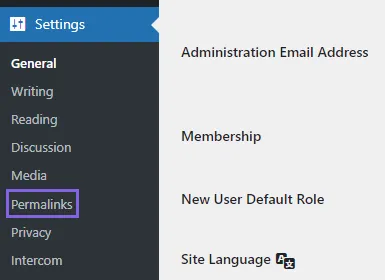
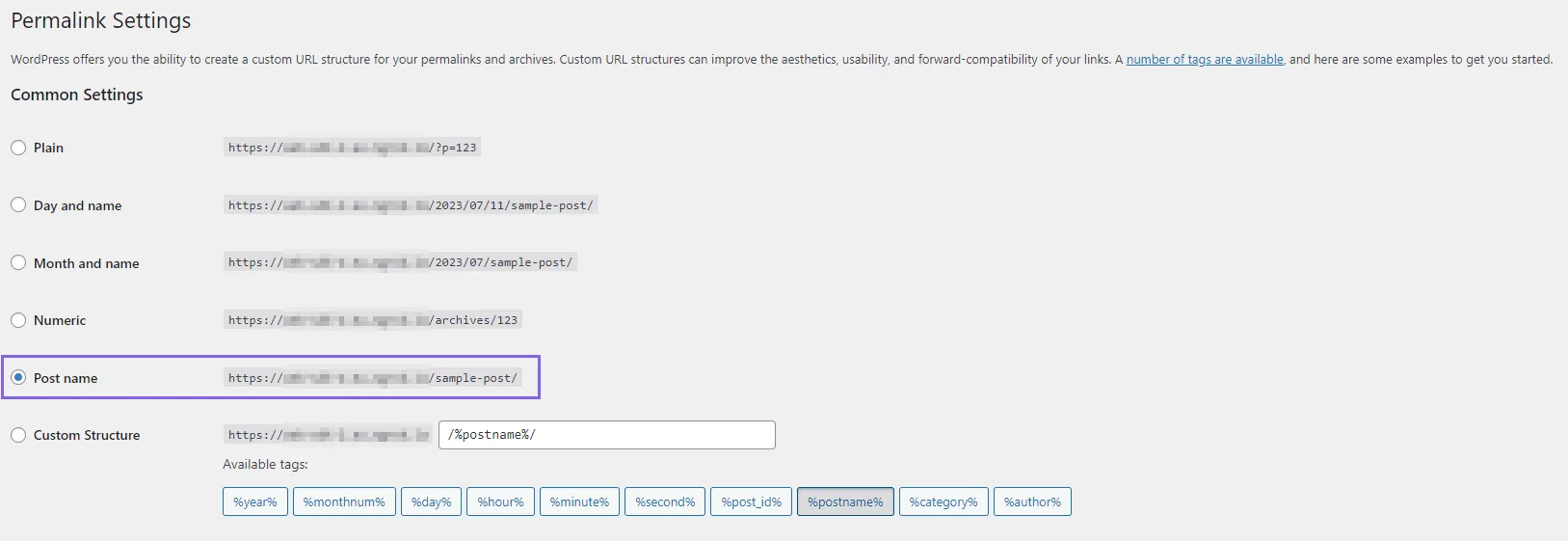
Ensure you are careful when changing this, if any other plugins require a different configuration this may cause issues with other plugins.
If you are unsure then do not use this plugin.
Installation
Ensure you have WooCommerce installed and working as desired.
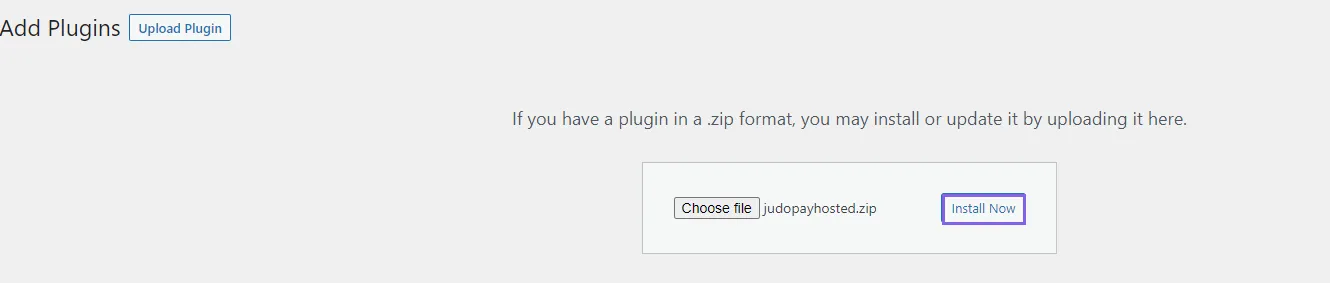
Go to the WordPress Plugins section Select Add New
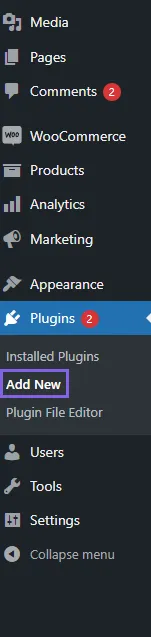
Select Upload Plugin Click Choose File
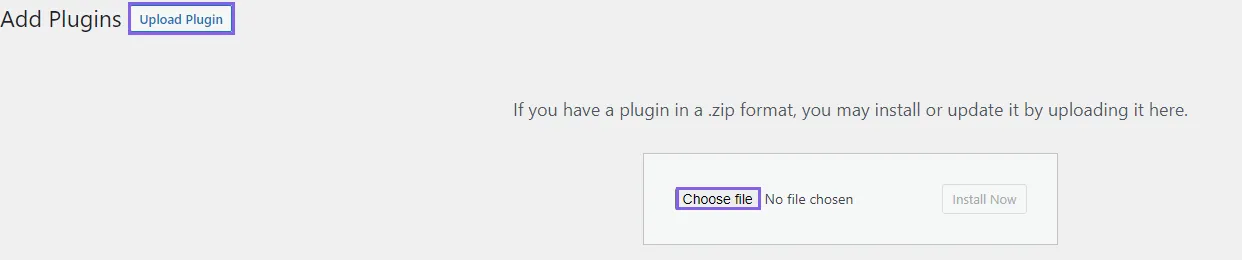
Locate the judopayhosted.zip file, then click Install Now
Click Activate Plugin to activate the plugin
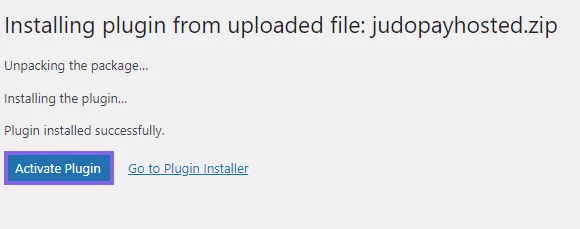
The installation is now complete.
Configure WooCommerce
In plugins for WooCommerce Click Settings

Click on the Payments tab
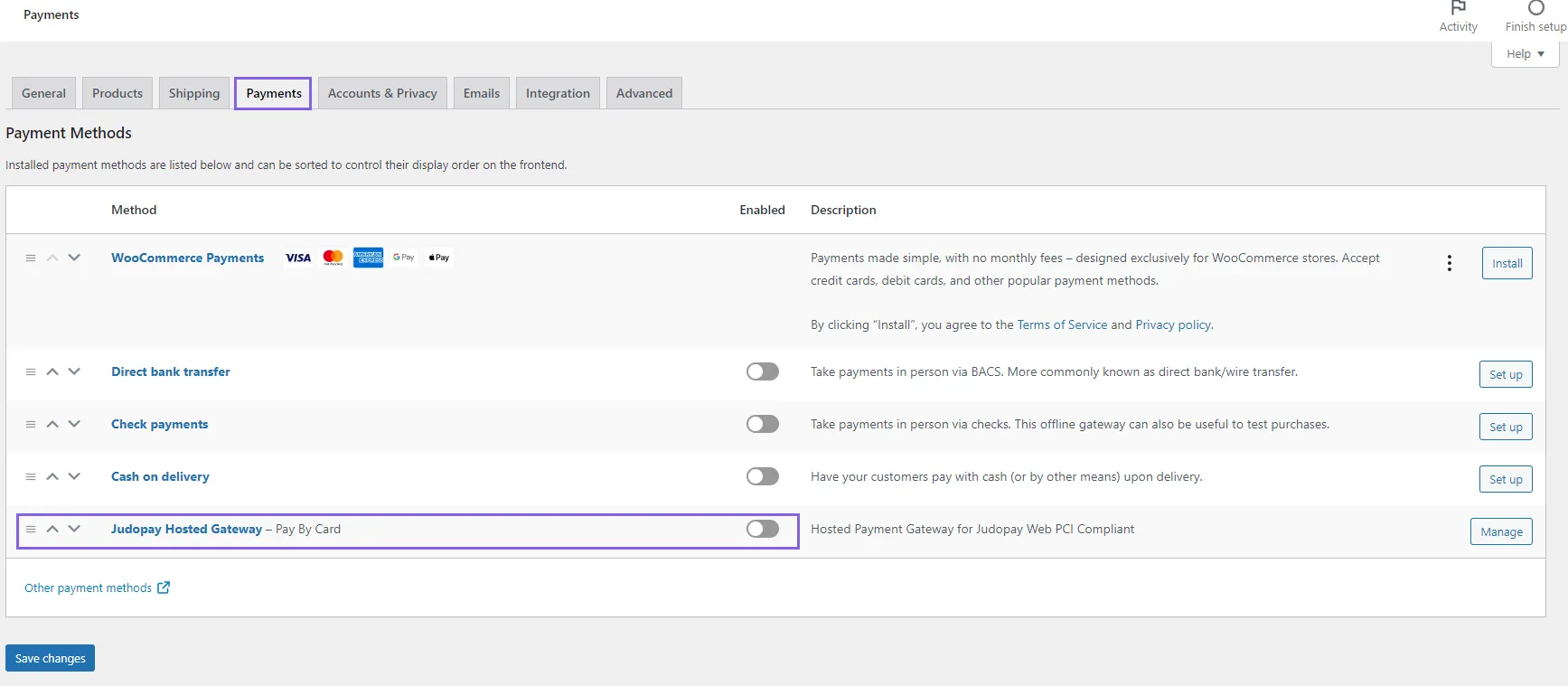
Toggle the Enabled button to enable Judopay Hosted Gateway.
To configure your Judopay Plugin Details, click Manage

Configure the Judopay Plugin
Sandbox mode is enabled by default and will use the Sandbox Account.
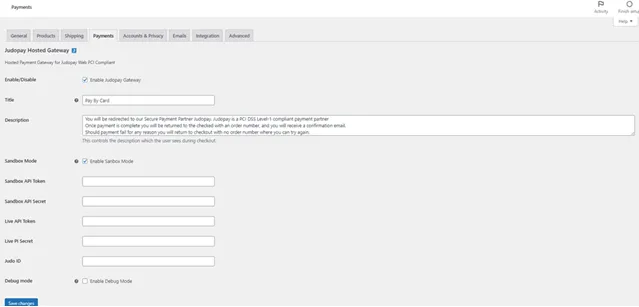
When you are ready to go live and have a live account, de-select Enable Sandbox Mode to receive live payments.
Contact your sales adviser ([email protected]) in order to set up a live transacting account.
Debug Mode will log to the WordPress log file if required.
This will not log card details in any way.
- apiToken: This your unique API Token from your Judopay Account.
- apiSecret: This your unique API Secret from your Judopay Account.
- judoId: This is your unique JudoId.
For assistance with your Judopay Account, contact [email protected] Sign up for a free Sandbox Account here.
Checkout View
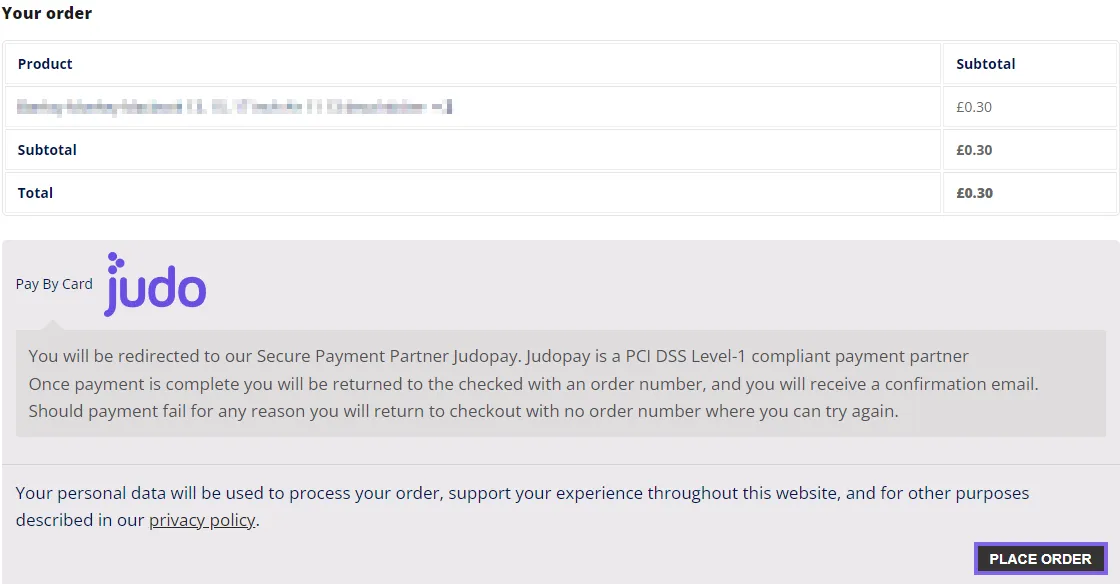
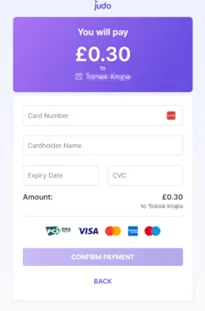
Success and Failure URLs
- Once the plugin is set up, login to portal.judopay.com and set up your success and failure URLs.
- The API token used by the plugin needs to use the following as its success / failure URL: https://www.yoursite.com/wc-api/judopay_webhook
- Where yoursite.com is your WordPress site.
- This is the return URL for Judopay to call the WooCommerce site and update the transaction status.
Register Card
We are no longer supporting or updating Register Card as it is an outdated method to verify cards, and is now deprecated. Check Card is the recommended card verification method required by the Card Schemes.
Use registerCard to save the consumer's card details in Judopay's card vault.
When making Token Payments, you can obtain the card token from the Register Card response.
Create an instance of the RegisterCard Model:
//Create an instance of the RegisterCard Model
var registerCardRequest = new RegisterCardModel
{
    JudoId = "yourJudoId",
    YourConsumerReference = "yourConsumerReference",
    YourPaymentReference = "yourPaymentReference",
    CardNumber = "4976000000003436",
    ExpiryDate = "12/25",
    CV2 = "452",
    CardAddress = new CardAddressModel
    {
        Address1 = "41 Luke St",
        PostCode = "EC2A 4DP",
        Town = "London",
        CountryCode = 826
    },
    // PrimaryAccountDetails only required for MCC6012 merchants
    PrimaryAccountDetails = new PrimaryAccountDetailsModel
    {
        Name = "Smith",
        AccountNumber = "1234567",
        DateOfBirth = "2000-12-31",
        PostCode = "EC2A 4DP"
    },
    // Following are for 3DS2 transactions
    PhoneCountryCode = "44",
    MobileNumber = "7999123456",
    EmailAddress = "[email protected]",
    CardHolderName = "John Smith",
    ThreeDSecure = new ThreeDSecureTwoModel
    {
        AuthenticationSource = ThreeDSecureTwoAuthenticationSource.Browser,
        ChallengeRequestIndicator = ThreeDSecureTwoChallengeRequestIndicator.ChallengeAsMandate,
        MethodNotificationUrl = "https://yourMethodNotificationUrl",
        ChallengeNotificationUrl = "https://yourChallengeNotificationUrl"
    }
};

//Send the request to Judopay
var response = await client.RegisterCards.Create(registerCardRequest);

if (response.HasError)
{
    if (response.Error.Code == (int)HttpStatusCode.Forbidden)
    {
        // Failed to authenticate - check your credentials
    }
    else if (response.Error.ModelErrors != null)
    {
        // Validation failed on the request, check each list entry for details
    }
    else
    {
        // Refer to https://docs.judopay.com/Content/Developer%20Tools/Codes.htm#Errors
        var errorCode = response.Error.Code;
    }
}
else if (response.Response is PaymentRequiresThreeDSecureTwoModel threeDSecureTwoResponseModel)
{
    if (threeDSecureTwoResponseModel.MethodUrl != null)
    {
        // Device details are required - POST md as threeDSMethodData to methodUrl
        var methodUrl = threeDSecureTwoResponseModel.MethodUrl;
        var md = threeDSecureTwoResponseModel.Md;
    }
    else if (threeDSecureTwoResponseModel.ChallengeUrl != null)
    {
        // Challenge is required - POST creq to challengeUrl
        var challengeUrl = threeDSecureTwoResponseModel.ChallengeUrl;
        var creq = threeDSecureTwoResponseModel.CReq;
    }
}
else if (response.Response is PaymentReceiptModel receipt)
{
    var receiptId = receipt.ReceiptId;
    var status = receipt.Result;
    if (receipt.Result == "Success")
    {
        var cardToken = receipt.CardDetails.CardToken;
    }
}
You do not need to set an amount. This is automatically set by Judopay's Transaction API in order to register the card.
The receipt response will show the payment: Type = PreAuth.
Parameter | Description |
|---|---|
yourConsumerReference String Required | Unique reference to anonymously identify your customer. Advisable to use GUIDs. Must be below 40 characters. |
yourPaymentReference String Required | Judopay's Server SDK sets this value automatically. If you insert a value, the SDK will change it. This value is unique in order to protect your customers against duplicate transactions. |
yourPaymentMetaData IDictionary Optional | Additional information associated with a transaction to help reconcile. |
judoId String Required | Unique ID supplied by Judopay. Specific to a merchant and/or location. Format:
|
cardNumber String Required | Submitted without whitespace or non-numeric characters. |
currency String Optional | The currency of the transaction. Any ISO 4217 alphabetic currency code:
|
cv2 String Required | The 3 or 4 digit number on the back of a credit card. Also known as the card verification value (CVV) or security code. |
startDate String Optional | For Maestro cards: Format:
|
expiryDate String Optional | The expiry date of the card. Format:
|
issueNumber Integer Optional | For Maestro cards:
|
initialRecurringPayment Boolean Optional | Indicates if this initial payment is part of a recurring payment. |
recurringPayment Boolean Optional | Indicates if this is a recurring payment. |
relatedReceiptId String Optional | The receiptId returned from the first subscription payment. Adding the relatedReceiptId references the subsequent recurring transactions to the original transaction. |
threeDSecure Object Required | For any 3D Secure 2 requests. authenticationSource indicates the type of channel used to initiate the transaction. Format:
Values:
challengeRequestIndicator Indicates the type of 3D Secure 2 challenge request. Format:
Values:
scaExemption The customer initiated transaction type, that is exempt from SCA. Format:
Values:
|
If result.HasError = false, check the Payment Receipt Model response.
Testing RegisterCard
We are no longer supporting or updating Register Card as it is an outdated method to verify cards, and is now deprecated. Check Card is the recommended card verification method required by the Card Schemes.
These scenarios do not include 3D Secure 2 authentication testing. See Testing 3D Secure 2 Flows for 3D Secure 2 authentication testing for your app.
RegisterCard Scenarios (Positive Flow)
RegisterCard conducts a pre-authorisation by reserving a pre-configured amount in the customer's account.
The pre-configured amount is set during your on-boarding process (the default amount is 1.01).
RegisterCard will tokenise the card information into an encrypted string, which can be used for future transactions.
The POST /transactions/voids endpoint can be used to cancel this pre-authorisation so it does not appear in the customer's statement.
Important to Consider
- RegisterCard tests involve verification of:
- The card:
- cardNumber
- cardExpiryDate
- cv2
- The account:
- Is not blocked or blacklisted
- Exists
- Tokenises the card number into an encrypted string.
- Store yourConsumerReference and cardToken and supply these in future card payment, preAuth, or Merchant Initiated Transaction requests.
A successful registerCard request verifies the card with the issuer and can be authenticated using 3D Secure 2, providing you with the confidence the card is valid to make future payments.
Suggested Test Scenario | Expected Outcome | Tip |
|---|---|---|
Process a registerCard request with the CV2/CVV security code included in the request. This will check the CV2/CVV is valid for that card. | 200 Successful | The CV2 field check will be performed during the transaction process. |
Process a registerCard request without the CV2/CVV security code included in the request. | Declined | The CV2 field check will not be performed during the transaction process. |
Process a registerCard request with the billing address information (cardAddress block) included in the request. This will validate the billing address is registered to that card. | 200 Successful | Ensure the cardAddress block has the correct fields:
Example cardAddress block: "cardAddress": {
"address1": "CardHolder House",
"address2": "1 CardHolder Street",
"address3": "CardHolder Area",
"town": "CardHolder Town",
"postCode": "AB1 2CD",
"countryCode": 826,
"state": "FL",
}, To validate the card is registered to the correct post code, ensure the following permission on your sandbox API Credentials is enabled:
The default setting = disabled. |
Process a registerCard request without the billing address information (cardAddress block) included in the request. | 200 Successful | |
For more information on API credentials and permissions, see Permissions.
Test Card Data
To simulate a successful registerCard request use the Test Cards.
Register Card Request Parameters
Sandbox endpoint: https://api-sandbox.judopay.com/transactions/registercard
HTTP Method: POST
Header Parameters:
Depending on how you integrate with Judopay, you can authenticate requests by:
- /paymentsession, or
- TokenSecretAuth
- The token and secret pair
For more information, see Authentication Methods.
API-Version: | 6.26 For the latest version of the Judopay Transaction API, see Latest Version. |
|---|---|
Content-Type: | application/json |
Accept: | application/json |
Authorization Method: TokenSecretAuth | In the Authorization Header:
Example: BasicTXpFdPdRSzWmSGk4djhxeTpjBTS4YjQ5OTdkZmO7CTk1YTE0OWEyMDg1MmY3YWYyZWEyZTcwYmQyZGY3O Replace {authstring} with base64 encoding of:
Example: MzPdkQK1mGi8v3ky:y158n4732dfc7595a149a20381f7af2ea2e70gr6df794b8rnwc019cc5f799kk3 |
Authorization Method: PaymentSessionAuthToken | For Payment Session authentication In the Api-Token header:
The Payment-Session header value must also be supplied. |
Authorization Method: PaymentSessionAuthReference | For Payment Session authentication In the Payment-Session header:
The Api-Token header value must also be supplied. |
Body Parameters:
Configuration Property Descriptions
Parameter | Description |
|---|---|
judoId String Optional | Unique ID supplied by Judopay. Specific to a merchant and/or location. Format:
|
cardNumber String Required | The unique number printed on the card (13 to 19 digits depending on card type). Submitted without whitespace or non-numeric characters. |
expiryDate String Required | The expiry date of the card. Format:
|
cv2 String Optional | The 3 or 4 digit number on the back of the card. Also known as the card verification value (CVV) or security code. |
yourConsumerReference String Required | Unique reference to anonymously identify your customer. Advisable to use GUIDs. Must be below 40 characters. |
yourPaymentReference String Optional | Your unique reference for this payment. Format:
This value should be unique in order to protect your customers against duplicate transactions. With a server side integration, if a payment reference is not supplied, the transaction will not be processed. |
cardHolderName String Optional | The full name of the card holder. |
{
    "yourConsumerReference": "[email protected]",
    "yourPaymentReference": "5312b7b1-e89c-4155-971a-6e6fa3fb1e26",
    "judoId": "100873697",
    "cardNumber": "4976000000003436",
    "expiryDate": "12/24",
    "cv2": "452",
    "cardHolderName": "Lonnie Rath V"
}
RegisterCard Scenarios (Negative Flow)
Declines can occur for various reasons, it can be impossible to simulate all the negative flows in a sandbox environment.
Important to Consider
- How your app handles negative flows
- Your customer's experience should a negative flow occur:
- Logic to communicate error messages
- Customise how your app responds
- How to maintain application consistency
Follow our suggested guidelines to simulate negative scenarios, to test your app’s error handling:
Suggested Negative Test Scenario | Expected Error Code | Error Description |
|---|---|---|
Attempt to perform a registerCard request using an invalid card expiry date. | 161 | Sorry, but the card expiry date must be in the future. |
Attempt to perform a registerCard request using an invalid card number. | 196 | Unable to process transaction as the card number is invalid. Please try again with a different card. |
Attempt to perform a registerCard request with an invalid CV2. | 74 | The CV2 entered is invalid. |
Attempt to perform a registerCard request with a missing CV2. The sandbox token has cv2 enabled, the registerCard request has an empty cv2 field. | | Sorry, you've not supplied the 3-digit card security code. Please check your details and try again. This is a model error. |
Simulate a decline using the following test card details: | | |
Attempt to perform a registerCard decline using the following:
| Declined
| Card declined. |
Where the codes remain fixed, the descriptions may change. You should not build any error handling logic based on these descriptions.
Integrating iDEAL
The iDEAL alternative payment method for a Web SDK and Mobile SDK integration, has been decommissioned.
Integrating iDEAL for React Native
To add iDEAL support to your Payments Widget:
- Set the currency code to EUR (Euro)
- Set the judoId
- Include iDEAL as a payment method
An example of a valid iDEAL configuration:
Once the currency and judoId are set, iDEAL will be available as a payment method in the Payments Widget.
Integrating iDEAL for Android
To add iDEAL support to your Payments Widget, set:
- The currency code to EUR (Euro)
- The JudoId
The judoIdparameter can be set by calling setJudoIdon the Judo builder. An example of a valid iDEAL configuration:
Once the currency and judoId are set, iDEAL will be available as a payment method in the Payments Widget.
Integrating iDEAL for iOS
To add iDEAL support to your Payments Widget, set:
- Currency code to EUR (Euro)
- The judoId parameter in the JPConfiguration instance:
An example of a valid iDEAL configuration: configuration.judoId = @"my-judo-id";
Once the currency and judoId are set, iDEAL will be available as a payment method in the Payments Widget.
Integrating iDEAL via Web SDK
Ideal is an online payment method that enables consumers to pay through their own bank.
Prerequisites
Make sure you have implemented the following prerequisites from the Web SDK integration guide:
Step One: Add the iDEAL payment tab
The fields referred to in this step are part of the iFrame configuration object supplied in Step Two in the Prerequisites: createCardDetails() Call: judo.createCardDetails('payment-iFrame', iFrameConfiguration)
To add the iDEAL payment tab:
- Ensure the array set for the enabledPaymentMethods field includes ‘IDEAL’.
- For example: enabledPaymentMethods: ['CARD', 'IDEAL']
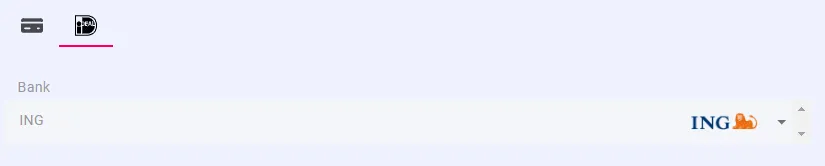
Transaction Timeout
You can alter the timeout for iDEAL transactions by setting the field idealPollingTimeout. Set it as the number of ms you want the timeout to be. For example: idealPollingTimeout: 40000 would set the transaction timeout to 40000ms (40 seconds).
If the field is not provided, the default value is 60000ms
Step Two: Making an iDEAL Transaction
- Define the idealConfiguration object for the payment
Ensure the details used when creating the paymentSession match the values set in the following configuration:
const idealConfiguration = {
    judoId: "yourJudoId",
    merchantPaymentReference: "yourPaymentReference",
    merchantConsumerReference: "yourConsumerReference",
    currency: "EUR",
    amount: 10,
    country: "NL",
    accountHolderName: "Account Holder Name",
    paymentMethod: "IDEAL"
}
To successfully process an iDEAL transaction, the currency must be ‘EUR’ (Euros).
2. Call getPaymentMethod() in your function that handles the payment button click for card payments. (If this is not already set up, add a function to handle this). getPaymentMethod() returns information on which tab is open in the iFrame. Call the appropriate Web SDK method to trigger the correct transaction.
For example:
- If the card form tab is open, getPaymentMethod will return “CARD”.
- For a payment, call: invokePayment()
- For a preAuth, call: invokePreauth()
- If the iDEAL tab is open, getPaymentMethod will return “IDEAL”.
- Call: invokePaymentWithIDEAL()
 function handlePaymentButtonClick() {
    const paymentMethod = judo.getPaymentMethod()

    if(paymentMethod === 'CARD') {
          judo.invokePayment(paymentSession, paymentConfiguration)
          .then(handleSuccess)
          .catch(handleError)
    }
    else if(paymentMethod === 'IDEAL') {
          judo.invokePaymentWithIDEAL(paymentSession, idealConfiguration)
          .then(handleSuccess)
          .catch(handleError)
    }
}
If you do not already have an event handler on your payment button to invoke the handlePaymentButtonClick():
- Add the onclick attribute to your payment button: <button id="submit-payment-button" onclick="handlePaymentButtonClick()"> Pay Now </button>
Make sure you have set :id ="submit-payment-button". This is required to perform form validation, where the Pay button will be greyed out until all the information has been entered.
Step Three: Handle the Response
All the Judopay Web SDK transaction methods return a promise. Once the authorisation is complete, the promise will be either fulfilled or rejected.
Fulfilled
- You will receive a JSON object response (a Judopay receipt object).
- Depending on the result the consumer should be redirected to the appropriate outcome page.
- For example, if the result = SUCCESS redirect the consumer to the Success Page.
- This page should display the necessary transaction information (found in the Judopay receipt object).
Rejected
- You will receive an error object
- The consumer should be redirected to an Error Page.
const onFulfillment = (receiptObject) => {
  const { result } = receiptObject
  //redirect to appropriate page depending on the result (success/failure/declined page)
}

const onRejection = (error) => {
  //redirect to error page and handle error
}
For more information on the response codes, see Codes.
Integrating Klarna
The Klarna alternative payment method for a Web SDK integration, has been decommissioned.
Integrating Klarna via Web SDK
Klarna is a payment method that allows consumers to pay for items in instalments, or at a later date. This does not impact the merchant as they will receive all of the funds upfront as Klarna pays the merchant in full, taking on the debt themselves.
Prerequisites
Make sure you are using Web SDK Version 0.0.18 (or higher).
Make sure you have implemented the following prerequisites from the Web SDK integration guide:
The payment form iFrame must be loaded onto the page in order for payments to work. However displaying the form to the consumer is not required for this transaction type.
To hide the payment form iFrame, use: <div id="payment-iframe" style="position:absolute;width:0;height:0;border:0;"></div>
To automatically receive non-breaking changes, you can pin to the minor version (0.0) rather than the current patch version (0.1.0).
Step One: Display the Klarna Button

Add the Klarna button to your web page:
<body>

  <div id="klarna-button-container" ></div>

<script>

  const klarnaButton = judo.getKlarnaButton({
    	backgroundColor: '#ffb3c7',
    	borderRadius: 4,
    	color: '#171717',
    	height: 36,
    	width: 280,
    	label: 'Pay now'
  })

  const container = document.getElementById("klarna-button-container")
  container.append(klarnaButton)

</script>
</body>
Klarna Button Style
Parameter | Value |
|---|---|
backgroundColor |
|
color |
|
label |
|
width | number |
height | number |
borderRadius | number |
Step Two: Handle the Klarna Button
Make sure the following parameters are the same values as those entered in Create a paymentSession, otherwise the transaction will fail:
- merchantPaymentReference
- merchantConsumerReference
- JudoID
- Currency
- Amount
This is used to cross reference the validity of the transaction.
Your backend server should store the paymentSession response reference returned by Judopay's API. Use this reference from the response to populate yourPaymentSession.
Make sure you replace the klarnaConfiguration object values with your own.
<script>

klarnaButton.onclick = handleKlarnaButtonClick

function handleKlarnaButtonClick() {

    const klarnaConfiguration = {
        judoId: "yourJudoId",
        currency: "GBP",
        amount: 10,
        country: "GB",
        accountHolderName: "Account Holder Name",
        merchantPaymentReference: "yourPaymentReference",
        merchantConsumerReference: "yourConsumerReference",
        taxAmount: 0.01,
        mobileNumber: "00441895808221",
        emailAddress: "[email protected]",
        apmData: {
            firstName: "John",
            lastName: "Doe",
            mobileNumber: "00441895808221",
            billingAddress: {
                address1: "13 New Burlington St",
                address2: "Apt 214",
                town: "London",
                country: "GB",
                postcode: "W13 3BG"
            }
        },
        paymentMethod: "Klarna"
    }

    judo.invokePaymentWithKlarna('yourPaymentSession', klarnaConfiguration)
        .then(handleSuccess)
        .catch(handleError)
}

</script>
For the specific input parameters of the products variable, refer to the Klarna Documentation.
Step Three: Handle the Response
All the Judopay Web SDK transaction methods return a promise. Once the authorisation is complete, the promise will be either fulfilled or rejected.
Fulfilled
- You will receive a JSON object response (a Judopay receipt object).
- Depending on the result the consumer should be redirected to the appropriate outcome page.
- For example, if the result = SUCCESS redirect the consumer to the Success Page.
- This page should display the necessary transaction information (found in the Judopay receipt object).
Rejected
- You will receive an error object
- The consumer should be redirected to an Error Page.
const onFulfillment = (receiptObject) => {
  const { result } = receiptObject
  //redirect to appropriate page depending on the result (success/failure/declined page)
}

const onRejection = (error) => {
  //redirect to error page and handle error
}
For more information on the response codes, see Codes.
Integrating PayByBankApp for React Native
PayByBankApp payment method for React Native is no longer supported and will no longer be updated.
Integrating PayByBankApp using the Payments Widget for React Native
Displaying PayByBankApp as a Payment Method
To display the PayByBankApp as a Payment Method for ReactNative:
- Create a JudoPBBAConfiguration:
Parameter | Description |
|---|---|
mobileNumber String | Consumer's mobile number. Sent with the transaction as an additional parameter. |
emailAddress String | Consumer's email address. Sent with the transaction as an additional parameter. |
appearsOnStatement String | Sent with the transaction as an additional parameter. |
deeplinkScheme String | Used in the deeplinking process to identify your app. |
deeplinkURL String | Specifies the app has opened as result of a redirect from the Bank App. The deeplink URL contains the information needed to start polling the transaction status. |
//With the JudoPBBAConfiguration set, pass it to the main JudoConfiguration:

const pbbaConfig: JudoPBBAConfiguration = {
    mobileNumber: "myMobileNumber",
    emailAddress: "myEmailAddress",
    appearsOnStatement: "myStatement",
    deeplinkScheme: 'my://app'
}
const config: JudoConfiguration = {
    ...
    pbbaConfiguration: pbbaConfig
    ...
}

//Call the invokePayByBankApp method
//Handle the response:

try {
    const judo = new JudoPay(token, secret)
    const response = await judo.invokePayByBankApp(config)
    // Handle response
} catch (exception) {
    // Handle exception
}
DeepLink Scheme
When the consumer invokes the PaybyBankApp transaction, in order to complete the transaction, the app redirects to the user's bank app. When the interaction is finished, the bank app redirects back to your app via the deeplinkScheme sending a deeplinkURL.
The deeplink scheme has to be set manually for iOS and Android, via the Info.plist (iOS) and the AndroidManifest.xml (Android).
The deeplinkURL can be used to start polling the transaction status. The deeplink events can be captured with the linking package already built in ReactNative.
Check the ReactNative sample app for the implementation reference.
Once you have captured the deeplinkURL, pass it to the deeplinkURL parameter of the JudoPBBAConfiguration. If this parameter is set once the invokePayByBankApp is called, the polling process should automatically start.
Integrating PayByBankApp directly to your App for React Native
Not using the Mobile SDK Payments Widget?
To Integrate directly to your app:
- Instead of calling invokePayByBankApp:
- Add the branded PaybyBankApp button
- Add the method as a button press action
- Expose the PaybyBankApp button as follows:
Although, the JudoPBBAButton is referred to as a button, it does not handle button-related events, such as onPress. The JudoPBBAButton will need to be wrapped in a component that handles touch events, for example the TouchableOpacity component.
Xamarin Integration
Xamarin SDK has been deprecated and will no longer be updated.
Prerequisites:
- You have set up your Judopay account.
- Sign up for your sandbox account, to receive access to your Judopay dashboard and the sandbox environment.
- Your judoIds and tokens are configured and enabled as appropriate.
- For more information on permissions, see Permissions.
- You have the latest version of the Android SDK.
- For more details, see Integrating Android with Judopay.
- You have the latest version of the iOS SDK.
- For more details, see Integrating iOS with Judopay.
For Mobile apps, we recommend using payment session authentication.
Integration Requirements:
- Xamarin Studio 6.1 / Visual Studio 2015
- Xamarin Forms 2.3.2.127
- Xcode 8
- Android 7.0 (API 24) SDK and build tools 24.0.3 installed
- The SDK is compatible with Android Jelly Bean (4.1) and above and iOS 8 and above.
Integrate Judopay into your project by visiting the Xamarin component store:
- Search for Judopay
- Add the component to your Android and iOS projects
Setting up Xamarin Ensure all integration steps are completed.
Add your app’s sandbox token and secret to your Judo instance in your Xamarin Forms page:
Add additional configuration depending on the project you are integrating, as follows:
Xamarin.Forms has issues resolving dependencies using DependencyService unless they have been registered.
Add the following in your AppDelegate.cs after the LoadApplication(new App()) method call in your FinishedLaunching method:
Going Live with Xamarin
You will need to have tested your app in the sandbox environment before going live. Point to the Live Environment Within your app’s Xamarin Forms page change the line specifying the targeted environment from SANDBOX to LIVE:
Environment = JudoEnvironment.Live,
Replace your sandbox API Token and Secret for the live API Token and Secret
Find these in JudopayPortal > Your apps > {app name} > Live Tokens Use the live environment for testing before deploying your app.
PayByBankApp
PayByBankApp payment method is no longer supported and will no longer be updated.
PayByBankApp is a new, easy and secure alternative payment method, that enables your consumers to pay online quickly and securely via their trusted mobile Bank app.
PayByBankApp facilitates the enablement of consumers using bank transfers to easily pay for goods and services online.
Without the need to enter card details or additional passwords every time a purchase is made, it is designed to simplify the checkout experience, giving consumers more control and visibility of their finances when making a purchase.
Consumer Journey on a Merchant's Mobile App
The consumer's journey on a mobile app, when selecting the PayByBankApp button:
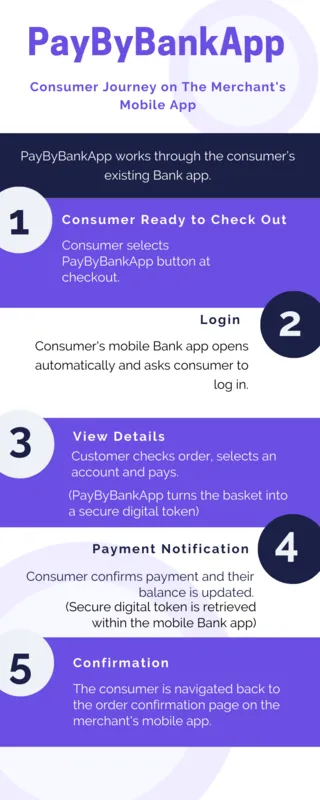
Features of PayByBankApp
Features of PayByBankApp:
- Strong authentication.
- PSD2 Compliant - Meeting the Strong Customer Authentication (SCA) Requirements.
- Increased Consumer Trust - Existing bank brands are known to the consumer.
- Works through the consumer’s existing Bank app.
- Merchant Liability Shifted to the Issuer:
- All transactions are authenticated via the consumers Bank app, so all liability is shifted away from the merchant to the issuing bank.
- Everything is tokenised:
- The merchant, Judopay and the distributor does not have any bank details of the consumer.
Benefits of PayByBankApp to your Consumers
Your consumers:
- Can check their balances in real time.
- Choose which account to pay from.
- No need to enter card details, or any additional passwords.
- Can see money move from their account in seconds.
- Stay secure with payment authorisation taking place in their Bank app.
- Consumers will be auto-enrolled when their online Bank app is installed.
If a consumer uses PayByBankApp with more than one Bank app on their phone, they will get the choice of which Bank app to open at the point of purchase, with the choice of setting their default option.
Once the consumer clicks the PayByBankApp button, they will be taken to their Bank app to complete the payment.
Integrating PayByBankApp - Android
PayByBankApp payment method is no longer supported and will no longer be updated.
To add the PayByBankApp button:
//Insert the button in the layout file:

<com.judopay.judokit.android.ui.common.PayByBankButton
android:id="@+id/payByBankButton"
android:layout_width="wrap_content"
android:layout_height="wrap_content" />

//Set OnClickListener to the PayByBankApp button
//The JudoActivity will start and pass the result to merchant:

payByBankButton.setOnClickListener {
    val intent = Intent(this, JudoActivity::class.java)
    intent.putExtra(JUDO_OPTIONS, judo)
    startActivityForResult(intent, JUDO_PAYMENT_WIDGET_REQUEST_CODE)
 }

//Enable the PayByBankApp in the Payment Selector Screen:
//Build the Judo configuration object:
//Set the payment widget type to:

PaymentWidgetType.PAYMENT_METHODS

//Set the currency:

GBP

val amount = Amount.Builder()
            .setAmount("1")
            .setCurrency(Currency.GBP)
            .build()

Judo.Builder(PaymentWidgetType.PAYMENT_METHODS)
            .setJudoId(judoId)
            .setApiToken(token)
            .setApiSecret(secret)
            .setAmount(amount)
            .setReference(reference)
            .setIsSandboxed(isSandboxed)
            .setSupportedCardNetworks(networks)
            .setPaymentMethods(paymentMethods)
            .setUiConfiguration(uiConfiguration)
            .setGooglePayConfiguration(googlePayConfiguration)
            .setPBBAConfiguration(pbbaConfiguration)
            .build()
//Start JudoActivity with the JudoConfiguration object:

val intent = Intent(this, JudoActivity::class.java)
    intent.putExtra(JUDO_OPTIONS, judo)
    startActivityForResult(intent, JUDO_PAYMENT_WIDGET_REQUEST_CODE)
For the PayByBankApp button to appear in the Payments Widget, a banking app must already be installed.
The PayByBankApp Button is displayed:
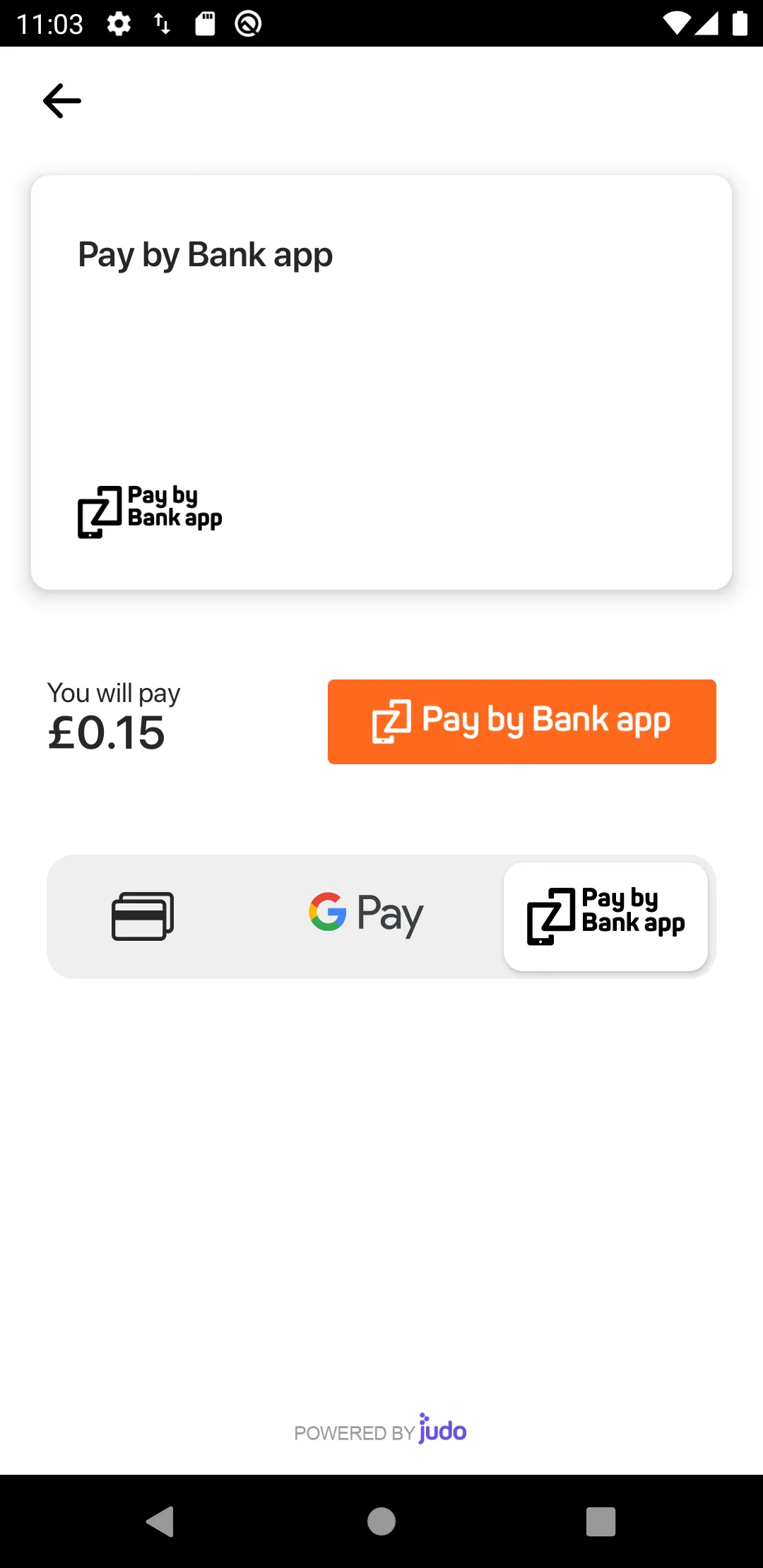
To display the PayByBankApp as a Payment Method for Android:
//Add the intent-filter to the AndroidManifest.xml file.
//This registers the deep link URL:

<activity
  android:name=".MainActivity"
  android:launchMode="singleTask">
  <intent-filter>
    <action android:name="android.intent.action.VIEW" />

    <category android:name="android.intent.category.DEFAULT" />
    <category android:name="android.intent.category.BROWSABLE" />

        <data
           android:scheme="your"
           android:host="scheme" />
  </intent-filter>
</activity>

//Create the Judo  object:
//Set PaymentWidgetType to:
//PAY_BY_BANK_APP, or
//PAYMENT_METHODS

//If using the payments widget.
//Set currency:GBP
//Create the PBBAConfiguration object:Set deepLinkScheme to the defined scheme in the AndroidManifest.xml file:

 val pbbaConfiguration = PBBAConfiguration.Builder()
        .setDeepLinkScheme("your://scheme")
        .build()
Judo.Builder(PaymentWidgetType.PAY_BY_BANK_APP)
            .setJudoId(judoId)
            .setApiToken(token)
            .setApiSecret(secret)
            .setAmount(amount)
            .setReference(reference)
            .setIsSandboxed(isSandboxed)
            .setSupportedCardNetworks(networks)
            .setPaymentMethods(paymentMethods)
            .setUiConfiguration(uiConfiguration)
            .setGooglePayConfiguration(googlePayConfiguration)
            .setPBBAConfiguration(pbbaConfiguration)
            .build()

//Override the onNewIntent method to catch the deeplink URL
//Add the deepLinkURL to the PBBAConfiguration object
//Start JudoActivity with the desired payment widget type
//Add the same logic in onCreate

 override fun onNewIntent(intent: Intent?) {
        checkForDeepLink(intent)
        super.onNewIntent(intent)
    }

    override fun onCreate(savedInstanceState: Bundle?) {
        super.onCreate(savedInstanceState)
        ...
        checkForDeepLink()
        ...
    }

    private fun checkForDeepLink(intent: Intent? = this.intent) {
        val uri = intent?.data
        val newIntent = Intent(this, JudoActivity::class.java)
        if (uri.contains("your://scheme")) {
            val newPbbaConfig = pbbaConfiguration.newBuilder()
                .setDeepLinkURL(uri)
                .build()
            val judo = getJudo(PaymentWidgetType.PAY_BY_BANK_APP).newBuilder()
                .setPBBAConfiguration(newPbbaConfig)
                .build()
            newIntent.putExtra(JUDO_OPTIONS, judo)
            startActivityForResult(newIntent, JUDO_PAYMENT_WIDGET_REQUEST_CODE)
        }
    }

    private fun getJudo(widgetType: PaymentWidgetType): Judo {
        return Judo.Builder(widgetType)
            .setJudoId(judoId)
            .setApiToken(token)
            .setApiSecret(secret)
            .setAmount(amount)
            .setReference(reference)
            .setIsSandboxed(isSandboxed)
            .setSupportedCardNetworks(networks)
            .setPaymentMethods(paymentMethods)
            .setUiConfiguration(uiConfiguration)
            .setGooglePayConfiguration(googlePayConfiguration)
            .setPBBAConfiguration(pbbaConfiguration)
            .build()

//To catch the first response, create a broadcastReceiver:

private val broadcastReceiver = object : BroadcastReceiver() {
    override fun onReceive(context: Context?, intent: Intent?) {
    val result = intent?.getParcelableExtra<JudoResult>(PBBA_RESULT)
        // Handle result
    }
}

//Register the defined receiver in onCreate:

LocalBroadcastManager.getInstance(this).registerReceiver(
    orderIdReceiver,
    IntentFilter(BR_PBBA_RESULT)
)

//Catch the result in the onActivityResult method:

override fun onActivityResult(requestCode: Int, resultCode: Int, data: Intent?) {
   super.onActivityResult(requestCode, resultCode, data)

     if (requestCode == JUDO_PAYMENT_WIDGET_REQUEST_CODE) {
       when (resultCode) {
         PAYMENT_SUCCESS -> {
         val result = data?.getParcelableExtra<JudoResult>(JUDO_RESULT)
             //Process successful payment
              }
         PAYMENT_CANCELLED -> {
         val result = data?.getParcelableExtra<JudoResult>(JUDO_RESULT)
            //Process cancelled payment
              }
         PAYMENT_ERROR -> {
         val error = data?.getParcelableExtra<JudoError>(JUDO_ERROR)
            //Process unsuccessful payment
              }
          }
      }
}
Integrating PayByBankApp Directly to your App for Android
Not using the Mobile SDK Payments Widget?
To Integrate directly to your app:
//Insert the button in the layout file:

<com.judokit.android.ui.common.PayByBankButton
  android:id="@+id/payByBankButton"
  android:layout_width="wrap_content"
  android:layout_height="wrap_content"
  />

//Add intent-filter to the AndroidManifest.xml file.
//This will register the deep link URL:

activity
 android:name=".MainActivity"
 android:launchMode="singleTask">
 <intent-filter>
 <action android:name="android.intent.action.VIEW" />

 <category android:name="android.intent.category.DEFAULT" />
 <category android:name="android.intent.category.BROWSABLE" />

 <data
   android:scheme="your"
   android:host="scheme" />
 </intent-filter>
 </activity>

//Create the Judo object:
//Set the PaymentWidgetType to PAY_BY_BANK_APP
//Create the PBBAConfiguration object
//Set deepLinkScheme to the defined scheme in the AndroidManifest.xml file:

 val pbbaConfiguration = PBBAConfiguration.Builder()
        .setDeepLinkScheme("your://scheme")
        .build()
Judo.Builder(PaymentWidgetType.PAY_BY_BANK_APP)
            .setJudoId(judoId)
            .setApiToken(token)
            .setApiSecret(secret)
            .setAmount(amount)
            .setReference(reference)
            .setIsSandboxed(isSandboxed)
            .setSupportedCardNetworks(networks)
            .setPaymentMethods(paymentMethods)
            .setUiConfiguration(uiConfiguration)
            .setGooglePayConfiguration(googlePayConfiguration)
            .setPBBAConfiguration(pbbaConfiguration)
            .build()

//Override the onNewIntent method to catch the deeplink URL:
//Add the deepLinkURL to the PBBAConfiguration object
//Start JudoActivity with the desired payment widget type
//Add the same logic in onCreate

 override fun onNewIntent(intent: Intent?) {
        checkForDeepLink(intent)
        super.onNewIntent(intent)
    }

    override fun onCreate(savedInstanceState: Bundle?) {
        super.onCreate(savedInstanceState)
        ...
        checkForDeepLink()
        ...
    }

    private fun checkForDeepLink(intent: Intent? = this.intent) {
        val uri = intent?.data
        val newIntent = Intent(this, JudoActivity::class.java)
        if (uri.contains("your://scheme")) {
            val newPbbaConfig = pbbaConfiguration.newBuilder()
                .setDeepLinkURL(uri)
                .build()
            val judo = getJudo(PaymentWidgetType.PAY_BY_BANK_APP).newBuilder()
                .setPBBAConfiguration(newPbbaConfig)
                .build()
            newIntent.putExtra(JUDO_OPTIONS, judo)
            startActivityForResult(newIntent, JUDO_PAYMENT_WIDGET_REQUEST_CODE)
        }
    }

    private fun getJudo(widgetType: PaymentWidgetType): Judo {
        return Judo.Builder(widgetType)
            .setJudoId(judoId)
            .setApiToken(token)
            .setApiSecret(secret)
            .setAmount(amount)
            .setReference(reference)
            .setIsSandboxed(isSandboxed)
            .setSupportedCardNetworks(networks)
            .setPaymentMethods(paymentMethods)
            .setUiConfiguration(uiConfiguration)
            .setGooglePayConfiguration(googlePayConfiguration)
            .setPBBAConfiguration(pbbaConfiguration)
            .build()

//To catch the first response, create a broadcastReceiver:

private val broadcastReceiver = object : BroadcastReceiver() {
    override fun onReceive(context: Context?, intent: Intent?) {
    val result = intent?.getParcelableExtra<JudoResult>(PBBA_RESULT)
        // Handle result
    }
}

//Register the defined receiver in onCreate:

LocalBroadcastManager.getInstance(this).registerReceiver(
    orderIdReceiver,
    IntentFilter(BR_PBBA_RESULT)
)

//Set OnClickListener to the previously defined PayByBankApp button
//JudoActivity will start and pass the result to merchant:

payByBankButton.setOnClickListener {
  val intent = Intent(this, JudoActivity::class.java)
  intent.putExtra(JUDO_OPTIONS, judo)
  startActivityForResult(intent, JUDO_PAYMENT_WIDGET_REQUEST_CODE)
 }

//Catch the result in the onActivityResult method:

override fun onActivityResult(requestCode: Int, resultCode: Int, data: Intent?) {
  super.onActivityResult(requestCode, resultCode, data)

    if (requestCode == JUDO_PAYMENT_WIDGET_REQUEST_CODE) {
       when (resultCode) {
       PAYMENT_SUCCESS -> {
       val result = data?.getParcelableExtra<JudoResult>(JUDO_RESULT)
           //Process successful payment
             }
       PAYMENT_CANCELLED -> {
       val result = data?.getParcelableExtra<JudoResult>(JUDO_RESULT)
           //Process cancelled payment
             }
       PAYMENT_ERROR -> {
       val error = data?.getParcelableExtra<JudoError>(JUDO_ERROR)
           //Process unsuccessful payment
                }
            }
        }
    }
<com.judokit.android.ui.common.PayByBankButton
  android:id="@+id/payByBankButton"
  android:layout_width="wrap_content"
  android:layout_height="wrap_content"
  />

//Add intent-filter to the AndroidManifest.xml file.
//This will register the deep link URL:

activity
 android:name=".MainActivity"
 android:launchMode="singleTask">
 <intent-filter>
 <action android:name="android.intent.action.VIEW" />

 <category android:name="android.intent.category.DEFAULT" />
 <category android:name="android.intent.category.BROWSABLE" />

 <data
   android:scheme="your"
   android:host="scheme" />
 </intent-filter>
 </activity>

//Create the Judo object:
//Set the PaymentWidgetType to PAY_BY_BANK_APP
//Create the PBBAConfiguration object
//Set deepLinkScheme to the defined scheme in the AndroidManifest.xml file:

 val pbbaConfiguration = PBBAConfiguration.Builder()
        .setDeepLinkScheme("your://scheme")
        .build()
Judo.Builder(PaymentWidgetType.PAY_BY_BANK_APP)
            .setJudoId(judoId)
            .setApiToken(token)
            .setApiSecret(secret)
            .setAmount(amount)
            .setReference(reference)
            .setIsSandboxed(isSandboxed)
            .setSupportedCardNetworks(networks)
            .setPaymentMethods(paymentMethods)
            .setUiConfiguration(uiConfiguration)
            .setGooglePayConfiguration(googlePayConfiguration)
            .setPBBAConfiguration(pbbaConfiguration)
            .build()

//Override the onNewIntent method to catch the deeplink URL:
//Add the deepLinkURL to the PBBAConfiguration object
//Start JudoActivity with the desired payment widget type
//Add the same logic in onCreate

 override fun onNewIntent(intent: Intent?) {
        checkForDeepLink(intent)
        super.onNewIntent(intent)
    }

    override fun onCreate(savedInstanceState: Bundle?) {
        super.onCreate(savedInstanceState)
        ...
        checkForDeepLink()
        ...
    }

    private fun checkForDeepLink(intent: Intent? = this.intent) {
        val uri = intent?.data
        val newIntent = Intent(this, JudoActivity::class.java)
        if (uri.contains("your://scheme")) {
            val newPbbaConfig = pbbaConfiguration.newBuilder()
                .setDeepLinkURL(uri)
                .build()
            val judo = getJudo(PaymentWidgetType.PAY_BY_BANK_APP).newBuilder()
                .setPBBAConfiguration(newPbbaConfig)
                .build()
            newIntent.putExtra(JUDO_OPTIONS, judo)
            startActivityForResult(newIntent, JUDO_PAYMENT_WIDGET_REQUEST_CODE)
        }
    }

    private fun getJudo(widgetType: PaymentWidgetType): Judo {
        return Judo.Builder(widgetType)
            .setJudoId(judoId)
            .setApiToken(token)
            .setApiSecret(secret)
            .setAmount(amount)
            .setReference(reference)
            .setIsSandboxed(isSandboxed)
            .setSupportedCardNetworks(networks)
            .setPaymentMethods(paymentMethods)
            .setUiConfiguration(uiConfiguration)
            .setGooglePayConfiguration(googlePayConfiguration)
            .setPBBAConfiguration(pbbaConfiguration)
            .build()

//To catch the first response, create a broadcastReceiver:

private val broadcastReceiver = object : BroadcastReceiver() {
    override fun onReceive(context: Context?, intent: Intent?) {
    val result = intent?.getParcelableExtra<JudoResult>(PBBA_RESULT)
        // Handle result
    }
}

//Register the defined receiver in onCreate:

LocalBroadcastManager.getInstance(this).registerReceiver(
    orderIdReceiver,
    IntentFilter(BR_PBBA_RESULT)
)

//Set OnClickListener to the previously defined PayByBankApp button
//JudoActivity will start and pass the result to merchant:

payByBankButton.setOnClickListener {
  val intent = Intent(this, JudoActivity::class.java)
  intent.putExtra(JUDO_OPTIONS, judo)
  startActivityForResult(intent, JUDO_PAYMENT_WIDGET_REQUEST_CODE)
 }

//Catch the result in the onActivityResult method:

override fun onActivityResult(requestCode: Int, resultCode: Int, data: Intent?) {
  super.onActivityResult(requestCode, resultCode, data)

    if (requestCode == JUDO_PAYMENT_WIDGET_REQUEST_CODE) {
       when (resultCode) {
       PAYMENT_SUCCESS -> {
       val result = data?.getParcelableExtra<JudoResult>(JUDO_RESULT)
           //Process successful payment
             }
       PAYMENT_CANCELLED -> {
       val result = data?.getParcelableExtra<JudoResult>(JUDO_RESULT)
           //Process cancelled payment
             }
       PAYMENT_ERROR -> {
       val error = data?.getParcelableExtra<JudoError>(JUDO_ERROR)
           //Process unsuccessful payment
                }
            }
        }
    }
Integrating PayByBankApp - iOS
PayByBankApp payment method is no longer supported and will no longer be updated.
Integrating PayByBankApp using the Payments Widget for iOS
Displaying PayByBankApp as a Payment Method for iOS
To display the PayByBankApp as a Payment Method for iOS:
//In the info.plist of app and LSApplicationQueriesSchemes add the URL scheme of the merchant(CFBundleURLSchemes)::

<key>CFBundleURLTypes</key>
    <array>
        <dict>
            <key>CFBundleTypeRole</key>
            <string>Editor</string>
            <key>CFBundleURLSchemes</key>
            <array>
                <string>judo</string>
            </array>
        </dict>
    </array>
    <key>LSApplicationQueriesSchemes</key>
    <array>
        <string>zapp</string>
    </array>


//Add deeplink to the pbbaConfiguration object:

  self.pbbaConfig = [JPPBBAConfiguration new];
  self.pbbaConfig.deeplinkScheme = @"judo://pay";

//To enable the PayByBankApp set the following options:
//Add the pbba method to:
//The paymentMethods  array in JPConfiguration
//Set currency: GBP
Integrating PayByBankApp Directly to your App for iOS
Not using the Mobile SDK Payments Widget?
To Integrate directly to your app:
Prerequisites
- "Bank3 Test App" - Contact: [email protected] to get access, so you can test the PayByBankApp flow.
- You have set your app's URL Scheme.
- You have added zapp to the ApplicationQueriesSchemes:
An example of the Info.plist file:
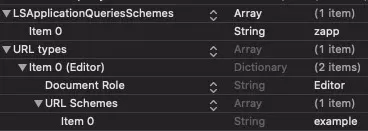
Step 1: Initialising the SDK
To integrate with the Judopay SDK directly to your iOS app, you can use either a:
- basic authorization
- session authorization
You can select the sandbox mode for testing purposes. Set the value:isSandboxed = true
Step 2: Check for Installed Bank Apps
To ensure a good customer experience, it is recommended to only display the PayByBankApp button when the consumer has a compatible mobile Banking app.
Before adding the PayByBankApp button in Step 3, check if any compatible PayByBankApp Bank apps are installed, using the JudoKit isBankingAppAvailable method:
Step 3: Adding the PayByBankApp Button
We recommend you use the branded button to invoke a PayByBankApp transaction, however it is not mandatory.

The PayByBankApp Button uses the delegate property. The delegate property points to any class that implements the JPPBBAButtonDelegate interface:
The JPBBAButton is a subclass of UIView, not UIButton. Take this into consideration when integrating the PayByBankApp button via the Interface Builder.
The JPPBBAButtonDelegate interface has only one method: pbbaButtonDidPress(sender:), which is responsible for handling the button tap action.
Recommended PayByBankApp Button Size:
- Minimum: Width 160pt | Height 40pt
- Maximum: Width 310pt | Height 48pt
Step 4: Adding the Delegate Method
The delegate method is responsible for the button tap action.
To add the delegate method:
- Call the invokePBBA method in the Judopay SDK and provide the required configuration parameters:
func pbbaButtonDidPress(_ sender: JPPBBAButton) {

    let amount = JPAmount(AMOUNT_VALUE, currency: "GBP")
    let reference = JPReference(consumerReference: CONSUMER_REF)

    configuration = JPConfiguration(judoID: JUDO_ID, amount: amount, reference: reference)

    let pbbaConfiguration = JPPBBAConfiguration()
    pbbaConfiguration.mobileNumber = YOUR_MOBILE_NUMBER
    pbbaConfiguration.emailAddress = YOUR_EMAIL_ADDRESS
    pbbaConfiguration.appearsOnStatement = YOUR_APPEARS_ON_STATEMENT
    pbbaConfiguration.deeplinkScheme = YOUR_DEEPLINK_SCHEME

    configuration.pbbaConfiguration = pbbaConfiguration

    judoKit.invokePBBA(with: configuration) { [weak self] (response, error) in
        if let response = response {
            // Handle response
        }

        if let error = error {
            // Handle error
        }
    }
}- Each Judopay transaction takes a JPConfiguration instance as a parameter.The configuration object sets up all the required parameters for a successful transaction. It also sets any optional parameters which you can configure to personalise the payment flow.
- PayByBankApp transactions require some extra parameters to be set up, in addition to the basic transaction configuration. These optional parameters are defined in the JPPBBAConfiguration class, and used to add additional information to the transaction. The following two parameters are recommended:
- deeplinkScheme
- deeplinkURL
- Call the invokePBBA method from the Judopay SDK.
The PayByBankApp flow will be triggered, opening the Bank app for consumers to make their transactions.
The deeplinkScheme
A deeplinkScheme identifies your app during the redirect process. When a consumer has completed their transaction using their bank app, the bank app will attempt to redirect the consumer back to your app.
The deeplinkScheme name should match the URL scheme defined in the Info.plist file. For example: myapp -> myapp:/
The deeplinkURL
The deeplink URL enables the app to open the consumer's mobile Banking app, so they can complete the transaction.
When the Bank app redirects the consumer back to your app, it also provides you with a URL that you can use to poll the transaction status.
Add the deeplinkURL to the main configuration object. This will be sent as a parameter to the transaction method.
It is a good idea to handle the errors within this step.
The most important information from the response is the orderId, accessed via response.orderDetails.orderId.
The orderId is used to manually check the transaction status.
Step 5: Handling the deeplinkURL
Following the completed transaction, the bank flow will be triggered when the invokePBBA method is called, even if the deeplinkURL parameter is not provided.
However, if the deeplinkURL parameter is provided, calling invokePBBA will trigger the transaction status polling logic.
To handle the deeplinkURL:
- Listen to this event.
- Capture the redirect URL.
To capture the redirect URL:
- In your AppDelegate file, add the following methods:
- application(_:open:options:)
- application(_:didFinishLaunchingWithOptions:)
Pass the URL to the JPPBBAConfiguration instance. For the purpose of this exercise, the deeplinkURL is saved in the app's UserDefaults. You can save the deeplinkURL in the Keychain or any alternative.
func application(
    _ application: UIApplication,
    didFinishLaunchingWithOptions launchOptions: [UIApplication.LaunchOptionsKey: Any]?
    ) -> Bool {

     if let url = launchOptions?[.url] as? URL {
         UserDefaults.standard.set(url, forKey: "deeplinkURL")
     }

     ...
}

func application(
    _ app: UIApplication, open url: URL,
    options: [UIApplication.OpenURLOptionsKey : Any] = [:]
    ) -> Bool {

     UserDefaults.standard.set(url, forKey: "deeplinkURL")

     ...
}
Step 6: Polling the Transaction Status
Once the Bank app has redirected the consumer back to your app, you can start polling the transaction status.
To start the PayByBankApp polling status:
- Add the deeplinkURL to the configuration
Call the invokePBBA(configuration:) method:
func handleDeeplink() {
     guard let url = UserDefaults.standard.url(forKey: "deeplinkURL") else {
         return
     }

     configuration.pbbaConfiguration?.deeplinkURL = url

     judoKit.invokePBBA(with: configuration) { [weak self] (response, error) in
         if let response = response {
             // Handle response
         }

         if let error = error {
             // Handle error
         }
     }
 }
In the JPResponse object, you can inspect the orderDetails containing information about the transaction status.
Another option is to put a check in your viewDidAppear(animated:) method. If a deeplinkURL is set up, add it to the configuration and call the invokePBBA(configuration:) method again. This will start the polling status.
Manually Checking the Transaction Status
There may be cases where the Bank app closes before the transaction flow completes. This would mean the deeplinkURL is not returned and the polling process to check the transaction status will not begin.
To manually check the transaction status:
- Invoke a manual order status request:
- Get the orderId from the initial request:
When the Bank app is invoked during the PayByBankApp request, (Step 4) the orderId is captured from the callback response:
judoKit.invokePBBA(with: configuration) { [weak self] (response, error) in
    if let response = response {
        let orderId = response.orderDetails?.orderId
            // Persist the orderId for later use
}
}
Use the orderId to manually check the transaction status: You would do this in the same way as Initialising the Judopay SDK, see Step 1: Initialising the SDK.
Call the invokeOrderStatus method, with the orderId:
The response will contain both the transaction status, and the order details of the transaction.
For a sample app, see Judopay's Judokit for iOS on Github.